Many people store all their important files in Google Drive, or another cloud storage service, without a second thought. The chances of Google losing your data are probably pretty small, but you're still not protected from human error or malicious actors.
Storing files in the cloud isn't a backup. Here are four ways to back up your Google Drive.
Option 1: Manual download
This is the simplest way to back up your Google Drive. Select all your files and click the download button:
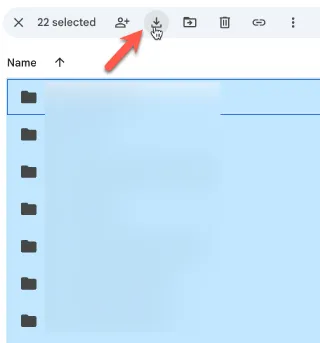
This produces a .zip file, which you can store in another location.
Pros:
Cons:
- Somewhat time-consuming, and more so the more often you need to make backups
- You have to remember to do it
- Downloads can be quite large
- You need somewhere to store and organise them
Option 2: Google Takeout
Google Takeout makes backing up a little easier and lets you back up almost every part of your Google account.
Go to takeout.google.com.
Make sure you deselect everything and select only Google Drive.
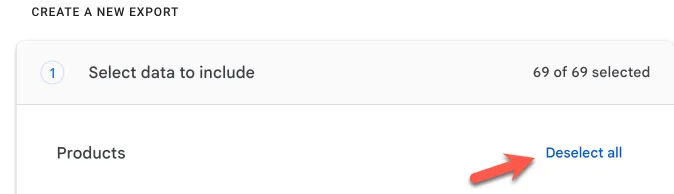
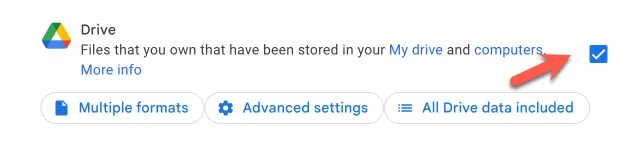
Scroll to the bottom of the page and go to the next step:

Review your settings here. You can tweak a number of options, but the defaults work well:
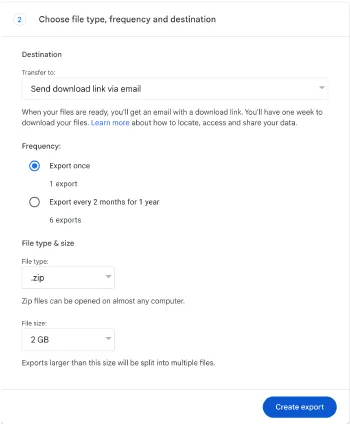
You can also export the backup to another cloud storage service:
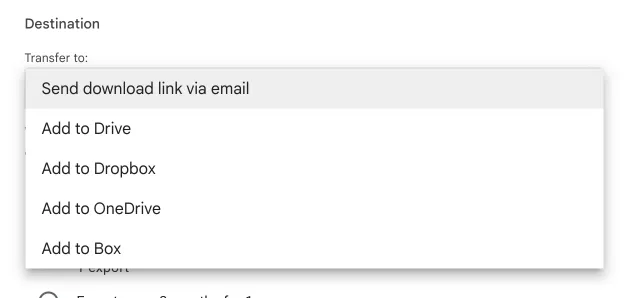
Once you've created your export, you'll receive an email with a link to download your backup. Depending on the size of your drive, it can take a while to process.
Pros:
- Simple
- Can export backups to another cloud service
Cons:
- You must remember to do it
- It can take time to process large Google Drives
- Does not work for Shared Drives
Option 3: Backblaze
Backblaze is a computer backup service that can back up the Google Drive files synced to your computer.
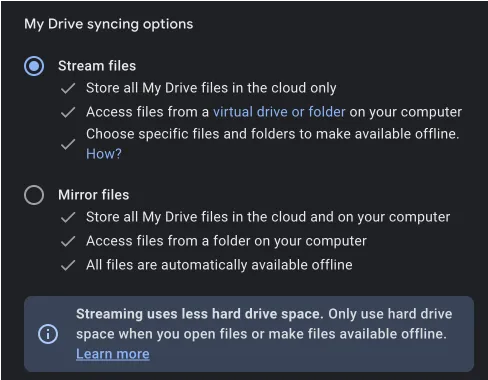
It needs the Google Drive desktop app installed on your computer, and Google Drive configured to download all files.
Pros:
- Automated
- Secure
- Backs up your whole computer
- Version history and data retention
Cons:
- You must have Google Drive installed on your computer
- You must configure Google Drive to download all files, which could be too large
- Your computer must be powered on and online for it to work
- Not free
- Might miss files if you don't have permissions
Option 4: Synology Active Backup
Possibly the ultimate option. Synology Active Backup for Google Workspace lets you connect your Google account and handles essentially the entire backup process.
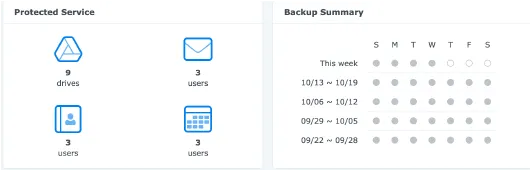
This option needs advanced knowledge of Google Workspace and Google Cloud, so we can't cover every detail here. Synology has documentation on preparing Google.
Once it's configured correctly, you can continuously back up your Google Drive (shared and personal), emails, contacts and calendars for all users in your organisation. You can then back up your Synology to the cloud or another location.
Pros:
- Automated
- Backs up all users
- Can back up shared drives
- Can back up your Synology device
Cons:
- Requires a compatible Synology NAS (network-attached storage) device
- Requires advanced skills to deploy
- Requires Google Workspace
Which option should you pick?
All four will get the job done, each with pros and cons.
The first two might be acceptable if you're a single user with some discipline and no specific data retention requirements.
If you're running a business with multiple users and need a solid way to back up the data stored in Google Drive, Synology is a great fit.
If you need help with any of this, talk to us.